
MS PowerPoint
08033146625, 08092566265 Email: training@ictacademy.com.ng Log in Register IT Jobs Tutorials Gallery Resources About Us Corporate Training
There are Three (3) Types of Alignment; Align left (default), Align Right and Align Center
By default all our document are aligned left from the beginning of our document.

The circled part is the function of the Align left and if you are conversant with your MS Word it is always clicked when you start typing.
How to use Align Left
To align your text left follow this simple procedure
• Open your MS Word
• Click on the Home Tab
• Click this symbol  on the paragraph tab
• You have aligned your text left.
Align Center
Align center is mostly used in for Headings or subtopic in a document
The circled part is the function wherein you can align your text center. Follow the steps below on how to align your text Center
• Open your MS Word
• Highlight the words you want to centralize
• Click on this symbol  on the paragraph tab
• Your Highlighted text is now aligned center
Align Right
Align Right is used to position a text to the right-hand side of the document
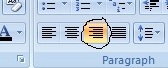
The circled part is the function that aligns your text to the right-hand side. Follow the following steps to align your text to the right side.
• Open your MS Word
• Highlight the word you want to align to the right side
• Click on this symbol  on the paragraph tab
• Your highlighted text is now aligned to the right-hand side


