
The data that you obtain from different sources may not be in a form ready for analysis. You will understand how to prepare your data that is in the form of text for analysis.
Initially, you need to clean the data. Data cleaning includes removing unwanted characters from text. Next, you need to structure the data in the form you require for further analysis. You can do the same by −
- Finding required text patterns with the text functions.
- Extracting data values from the text.
- Formatting data with text functions.
- Executing data operations with the text functions.
Removing Unwanted Characters from Text
When you import data from another application, it can have nonprintable characters and/or excess spaces. The excess spaces can be −
- leading spaces, and/or
- extra spaces between words.
If you sort or analyze such data, you will get erroneous results.
Consider the following example –
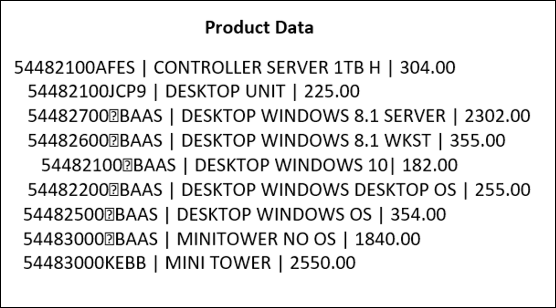
This is the raw data that you have obtained on product information containing the Product ID, Product description, and price. The character “|” separates the field in each row.
When you import this data into an Excel worksheet, it looks as follows:
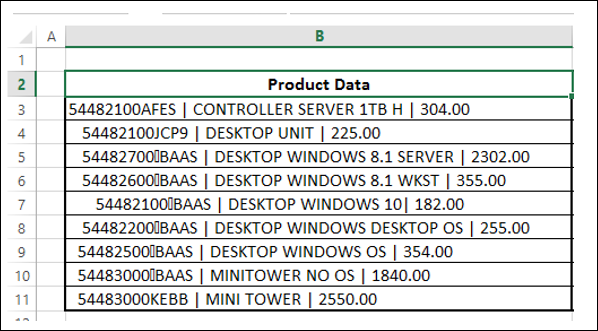
As you observe, the entire data is in a single column. You need to structure this data to perform data analysis. However, initially, you need to clean the data.
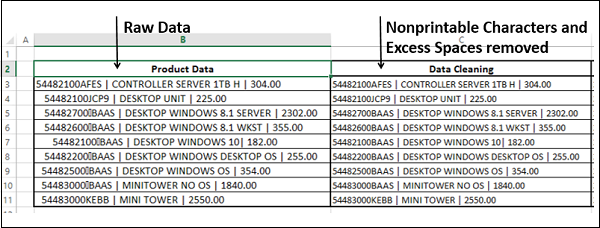
You need to remove any nonprintable characters and excess spaces that might be present in the data. You can use the CLEAN function and TRIM function for this purpose.
| S.No. Function & Description 1. CLEAN Removes all nonprintable characters from the text 2. TRIM Removes spaces from text |
Select the Cells C3 – C11.
Type =TRIM (CLEAN (B3)) and then press CTRL + Enter.
The formula is filled in the cells C3 – C11.
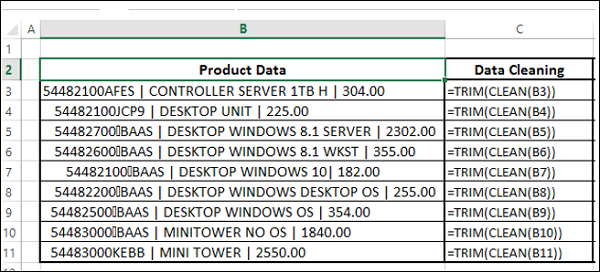
The formula is filled in the cells C3 – C11.
Finding required Text Patterns with the Text Functions
To structure your data, you might have to do certain Text Pattern matching based on which you can extract the Data Values. Some of the Text Functions that are useful for this purpose are:
| S.No. Function & Description 1. EXACT Checks to see if two text values are identical 2. FIND Finds one text value within another (case-sensitive) 3. SEARCH Finds one text value within another (not case-sensitive) |
Extracting Data Values from Text
You need to extract the required data from the text to structure the same. In the above example, say, you need to place the data in three columns – ProductID, Product_Description, and Price.
You can extract data in one of the following ways −
- Extracting Data Values with Convert Text to Columns Wizard
- Extracting Data Values with Text Functions
- Extracting Data Values with Flash Fill.
Extracting Data Values with Convert Text to Columns Wizard
You can use the Convert Text to Columns Wizard to extract Data Values into Excel columns if your fields are −
- Delimited by a character, or
- Aligned in columns with spaces between each field.
In the above example, the fields are delimited by the character “|”. Hence, you can use the Convert Text to Columns wizard.
- Select the data.
- Copy and paste values in the same place. Otherwise, Convert Text to Columns takes the functions rather than the data itself as the input.
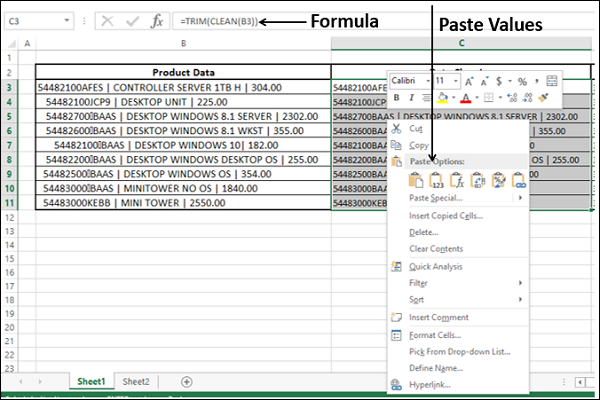
Select the data.
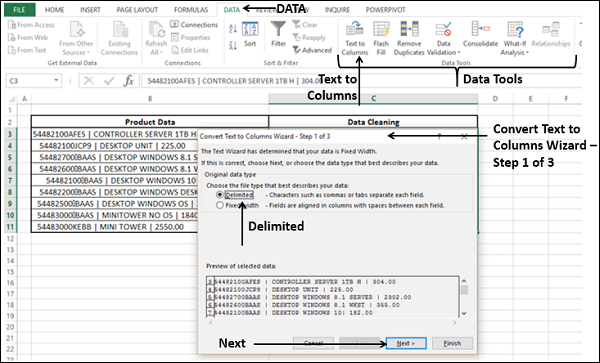
Click on Text to Columns in the Data Tools group under Data Tab on the Ribbon.
Step 1 − Convert Text to Columns Wizard – Step 1 of 3 appears.
Select Delimited.
Click Next.
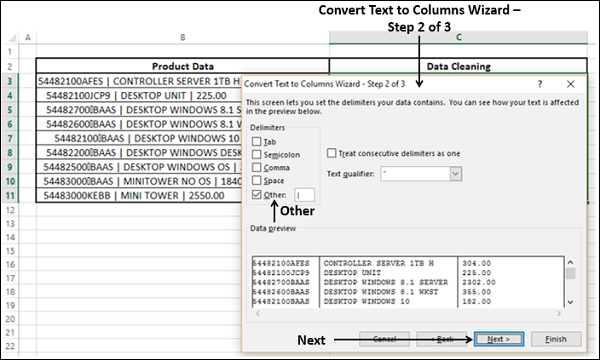
Step 2 − Convert Text to Columns Wizard – Step 2 of 3 appears.
- Under Delimiters, select Other.
- In the box next to Other, type the character |
Click Next.
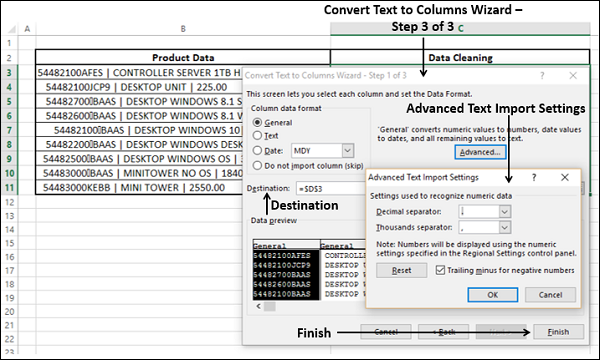
Step 3 − Convert Text to Columns Wizard – Step 3 of 3 appears.
In this screen, you can select each column of your data in the wizard and set the format for that column.
For Destination, select cell D3.
You can click Advanced, and set Decimal Separator and Thousands Separator in the Advanced Text Import Settings dialog box that appears.
Click Finish.
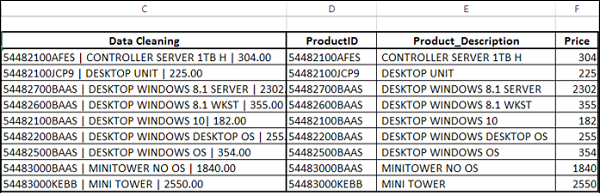
Your data, which is converted to columns appears in the three Columns – D, E, and F.
Name the Column headers as ProductID, Product_Description, and Price.
Formatting Data with Text Functions
Excel has several built-in text functions that you can use for formatting data containing text. These include −
| S.No. Function & Description 1. LOWER Converts text to lowercase S.No. Function & Description 1. UPPER Converts text to uppercase 2. PROPER Capitalizes the first letter in each word of a text value |
Functions that convert and/or format the Numbers as Text –
| S.No. Function & Description 1. DOLLAR Converts a number to text, using the $ (dollar) currency format 2. FIXED Formats a number as text with a fixed number of decimals 3. TEXT Formats a number and converts it to text |
Functions that convert the Text to Numbers –
| S.No. Function & Description 1. VALUE Converts a text argument to a number |
You might have to perform certain Text Operations on your Data. For example, if Login-IDs for the Employees are changed to a New Format in an Organization, based on the Format Change, Text Replacements might have to be done.
Following Text Functions help you in performing Text Operations on your data containing Text −
| S.No. | Function & Description |
| 1. | REPLACE Replaces characters within the text |
| 2. | SUBSTITUTE Substitutes new text for old text in a text string |
| 3. | CONCATENATE Joins several text items into one text item |
| 4. | CONCAT Combines the text from multiple ranges and/or strings, but it does not provide the delimiter or IgnoreEmpty arguments. |
| 5. | TEXT JOIN Combines the text from multiple ranges and/or strings, and includes a delimiter you specify between each text value that will be combined. If the delimiter is an empty text string, this function will effectively concatenate the ranges. |
| 6. | REPLY Repeats text a given number of times |