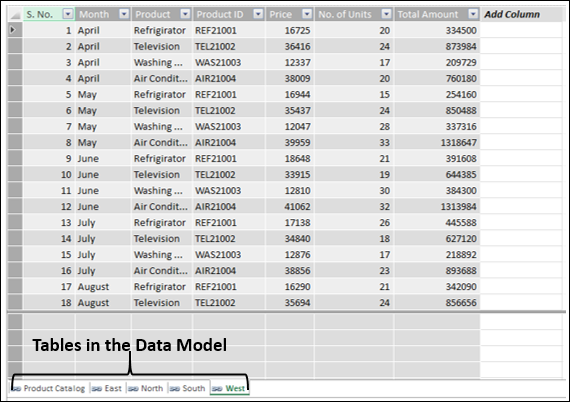
When you import data from relational databases like Microsoft Access database that contain multiple related tables, Data Model is automatically created if you import more than one table at once.
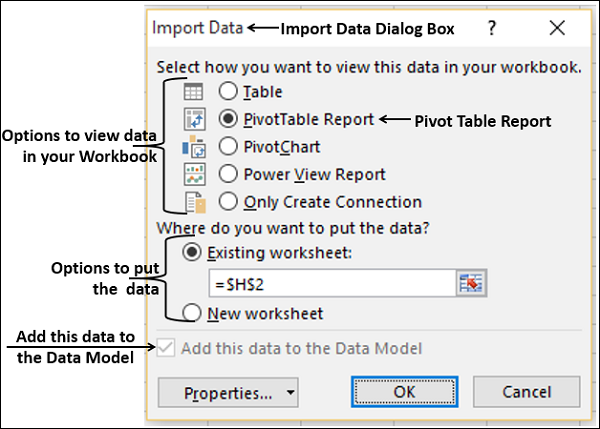
You can optionally add tables to the Data Model, when you import data from the following data sources −
- Relational databases, one table at a time
- Text Files
- Excel Workbooks
For example, while you are importing data from an Excel workbook, you can observe the option Add this data to the Data Model, with an enabled check box.
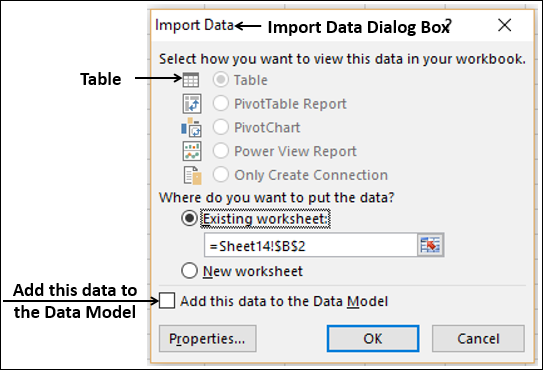
If you want to add the data you are importing to the Data Model, check the box.
Creating Data Models from Excel Tables
You can create the Data Model from Excel tables using PowerPivot commands. You will learn PowerPivot in detail in later chapters.
All the Data Model commands are available under the PowerPivot tab on the Ribbon. You can add Excel tables to the Data Model with these commands.
Consider the following sales data workbook, wherein you have Product Catalog worksheet that contains Product, Product ID and Price. You have four worksheets for the sales in 4 regions – East, North, South and West.
Each of these four worksheets contain No. of Units sold and Total Amount for each of the Products in each month. You need to calculate the total amount for each of the products in each region and total amount of sales in each region.

The following steps enable you to arrive at the desired results −
- Start with creating the Data Model.
- Click in the Product Catalog worksheet.
- Click the POWERPIVOT tab on the Ribbon.
- Click Add to Data Model. The Create Table dialog box appears.
- Select the table range.
- Check the box My table has headers. Click OK.

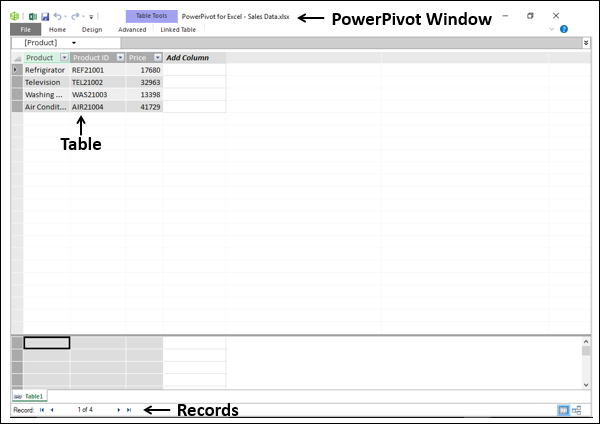
A new window – PowerPivot for Excel – <your Excel file name> appears.
The following message appears in the center of the blank window −

The table Product Backlog that you added to the Data Model appears as a sheet in PowerPivot window. Each row in the table is a record and you can go back and forth the records using the left and right arrow buttons at the bottom of the window.

- Click the Linked Table tab in the PowerPivot window.
- Click Go to Excel Table.
The Excel data window appears.
- Click the worksheet tab – East.
- Click the POWERPIVOT tab on the Ribbon.
- Click Add to Data Model.
Another sheet appears in the PowerPivot window displaying the East table.
Repeat for the worksheets – North, South and West. In all, you have added five tables to the Data Model. Your PowerPivot window looks as below −