
Microsoft Excel is one of the most powerful tools for organizing, analyzing, and managing data. At the heart of Excel lies the worksheet, which serves as the primary workspace where all data operations occur.
Understanding worksheets is essential for anyone who wants to use Excel efficiently. Whether you are tracking expenses, managing business data, or analyzing datasets, mastering worksheets will significantly improve your productivity.
What is a Worksheet in Excel?
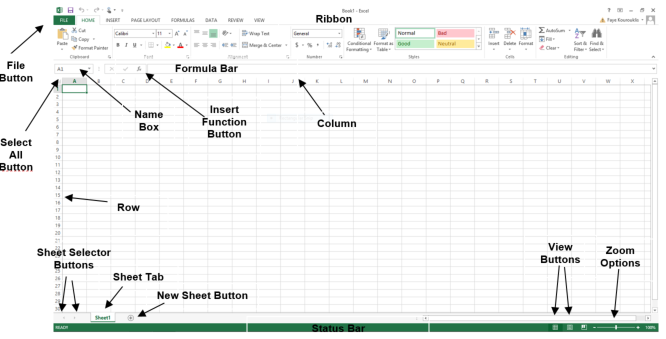
A worksheet is a single spreadsheet page within an Excel workbook where data is entered, stored, and analyzed.
Each worksheet contains a grid made up of:
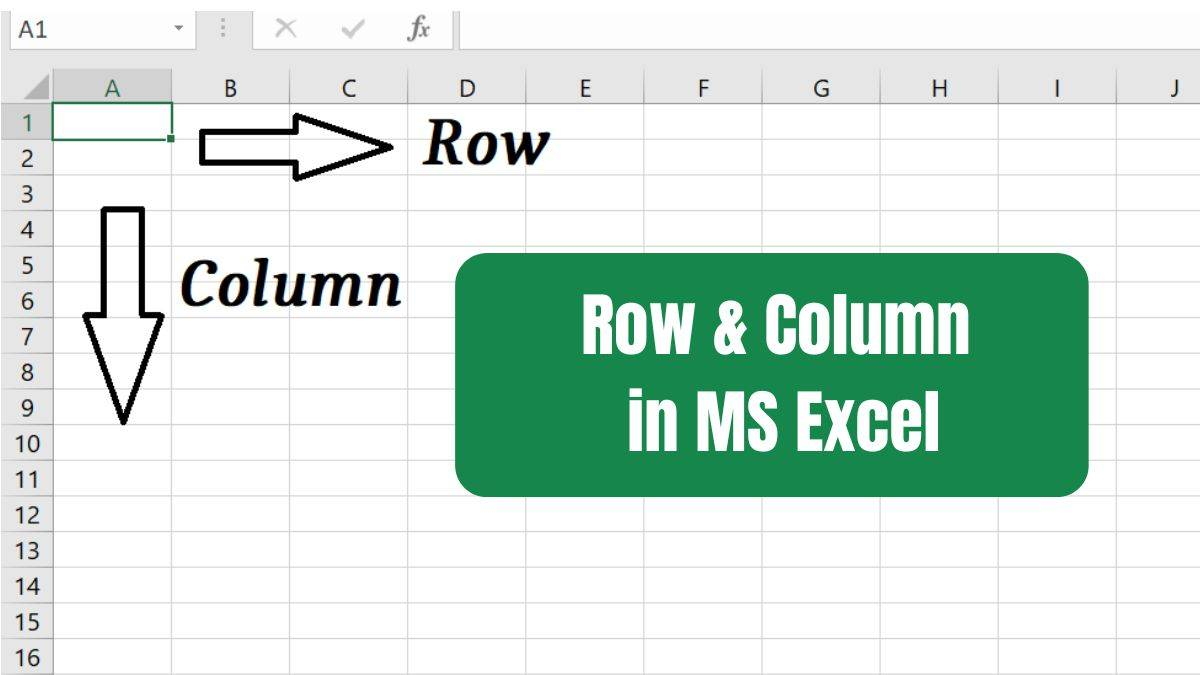
- Rows – Horizontal lines labeled with numbers
- Columns – Vertical lines labeled with letters
- Cells – Individual boxes where data is entered
Each cell is identified by a cell reference, such as:
- A1
- B5
- D10
This structure allows users to store and manipulate large amounts of data efficiently.
Understanding Rows, Columns, and Cells
A worksheet is made up of thousands of rows and columns.
Excel currently supports:
- 1,048,576 rows
- 16,384 columns
Rows are numbered while columns are labeled alphabetically.
For example:
- Cell A1 is located in column A and row 1
- Cell C5 is located in column C and row 5
Cells can contain different types of data such as:
- Numbers
- Text
- Dates
- Formulas
Working with Multiple Worksheets
An Excel workbook can contain multiple worksheets, allowing users to organize related datasets separately.
For example, a company workbook may contain:
- Sales worksheet
- Employee worksheet
- Budget worksheet
- Inventory worksheet
Using multiple worksheets helps keep data organized and easy to manage.
How to Add a New Worksheet
Adding a worksheet in Excel is very simple.
Follow these steps:
- Open your Excel workbook.
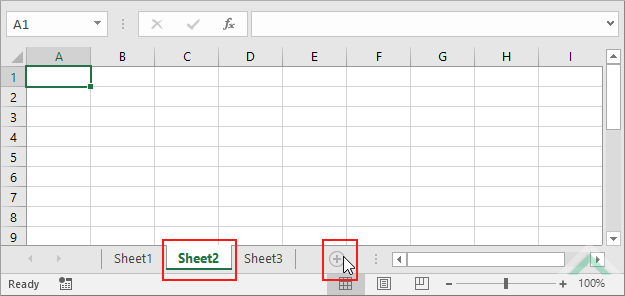
- Look at the bottom of the Excel window.
- Click the “+” icon beside the worksheet tabs.
Excel will instantly create a new worksheet.
Renaming Worksheets for Better Organization
Renaming worksheets makes it easier to understand what each sheet contains.
To rename a worksheet:
- Double-click the worksheet tab.
- Type the new name.
- Press Enter.
Example worksheet names include:
- Monthly Sales
- Employee Records
- Marketing Data
- Financial Report
Moving and Rearranging Worksheets
Excel allows users to rearrange worksheets within a workbook.
To move a worksheet:
- Click the worksheet tab.
- Hold and drag it left or right.
- Release it in the desired position.
This helps organize worksheets logically.
Copying Worksheets
Sometimes you may want to duplicate a worksheet.
To copy a worksheet:
- Right-click the worksheet tab.
- Select Move or Copy.
- Check Create a Copy.
- Click OK.
This creates an identical worksheet with the same data and formatting.
Why Worksheets Are Important
Worksheets provide a structured way to organize and analyze data.
They allow users to:
- Store large datasets
- Perform calculations
- Create charts and dashboards
- Build financial models
- Track business performance
Without worksheets, Excel would not be able to organize information efficiently.
Best Practices When Using Worksheets
To use worksheets effectively:
- Use clear worksheet names
- Keep related data in separate worksheets
- Avoid overcrowding a single worksheet
- Use consistent formatting
- Organize worksheets logically
These practices make your workbook easier to navigate and understand.
Conclusion
Worksheets are the foundation of Microsoft Excel. By understanding how worksheets work and how to manage them properly, users can organize data more effectively and build powerful spreadsheets for analysis and reporting.
Mastering worksheets is the first step toward becoming proficient in Excel.