
Working with messy data is one of the most common challenges in Excel. Datasets often come with issues such as duplicate rows, inconsistent formatting, missing values, and unnecessary columns. Cleaning this data manually can be time-consuming and error-prone.
This is where Power Query becomes a game-changer.
Power Query is a powerful data transformation tool in Excel that allows you to import, clean, and reshape data automatically. Instead of repeating manual steps, you can create a process once and reuse it whenever needed.
In this article, you’ll learn how Power Query works and how to use it to clean messy data efficiently.
What is Power Query in Excel?
Power Query is a built-in Excel tool used for:
- Data extraction
- Data cleaning
- Data transformation
- Data loading
It allows you to connect to different data sources and apply transformations without modifying the original data.
Power Query is especially useful when working with:
- Large datasets
- Repetitive data cleaning tasks
- Data from external sources
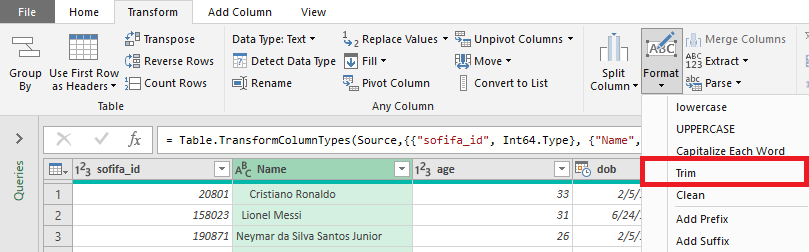
Why Use Power Query Instead of Manual Cleaning?
Manual data cleaning involves repetitive steps such as:
- Deleting blank rows
- Fixing text formats
- Removing duplicates
Power Query automates all of these.
Benefits include:
- Saves time
- Reduces errors
- Handles large datasets efficiently
- Creates repeatable workflows
Once a query is created, you can simply click Refresh, and Excel will apply all cleaning steps automatically.
How to Load Data into Power Query
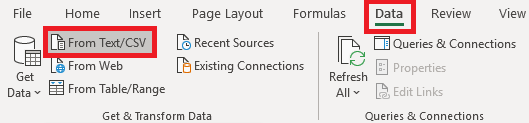
To start using Power Query:
- Go to the Data tab in Excel.
- Click Get Data.
- Choose your data source (Excel file, CSV, database, etc.).
- Click Load or Transform Data.
Selecting Transform Data opens the Power Query Editor, where all cleaning happens.
Removing Duplicates
Duplicate data can distort analysis.
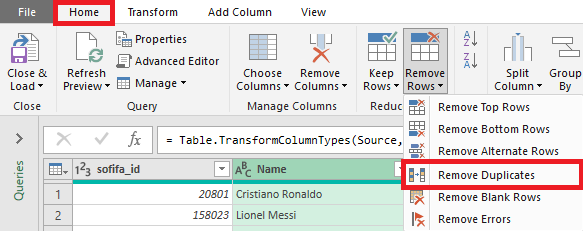
Steps to remove duplicates:
- Select the column(s) in Power Query.
- Go to the Home tab.
- Click Remove Rows → Remove Duplicates.
Power Query instantly removes duplicate entries.
Cleaning Text Data
Messy text data often contains:
- Extra spaces
- Inconsistent capitalization
- Unwanted characters
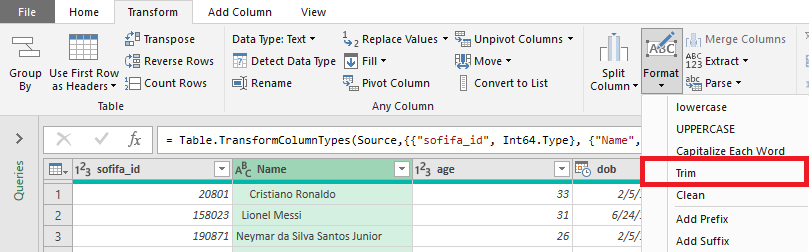
Power Query provides tools such as:
- Trim (removes extra spaces)
- Clean (removes non-printable characters)
- Format (uppercase, lowercase, capitalize)
These tools help standardize your data.
Splitting and Merging Columns
Sometimes data is combined into one column, such as:
“John Doe”
You can split it into:
- First Name
- Last Name
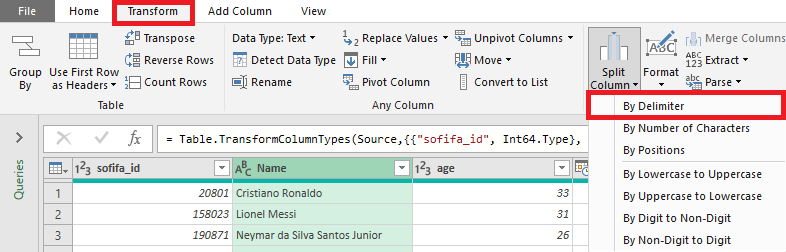
Steps to split columns:
- Select the column.
- Go to the Transform tab.
- Click Split Column.
- Choose a delimiter (space, comma, etc.).
Handling Missing Values
Missing data can affect analysis.
Power Query allows you to:
- Replace null values
- Fill down or fill up
- Remove blank rows
Example:
Replace null values with “0” or “Unknown”.
Changing Data Types
Incorrect data types can cause errors.
For example:
- Numbers stored as text
- Dates not recognized properly
Power Query allows you to change data types easily.
Steps:
- Select the column.
- Click the data type icon.
- Choose the correct format (Number, Date, Text, etc.).

Loading Clean Data Back to Excel
After cleaning your data:
- Click Close & Load.
- Excel will load the cleaned data into a new worksheet.
Whenever the source data changes, simply click Refresh, and all transformations will be reapplied automatically.
Best Practices for Using Power Query
To use Power Query effectively:
- Keep raw data unchanged
- Name your queries clearly
- Apply transformations in logical steps
- Avoid unnecessary columns
- Test your query before final use
These practices make your workflow efficient and reliable.
Common Mistakes to Avoid
- Overwriting original data
- Ignoring data types
- Applying unnecessary transformations
- Not documenting steps
Always review your data after transformation.
Conclusion
Power Query is one of the most powerful tools in Microsoft Excel for cleaning and transforming data. It eliminates repetitive manual work and allows users to build automated data-cleaning processes.
By mastering Power Query, you can handle messy datasets efficiently, improve data quality, and save hours of work.
For anyone working with data regularly, Power Query is not optional — it is essential.