
Many Excel users still spend hours manually deleting blank rows, fixing dates, splitting names, and combining files. The problem is that these same cleaning tasks usually need to be repeated every time new data arrives.
A smarter solution is to use Power Query in Excel.
Power Query allows you to import messy data, clean it automatically, and refresh everything with one click. Instead of repeating the same manual process every week, you create the process once and let Excel do the work for you.
What is Power Query?
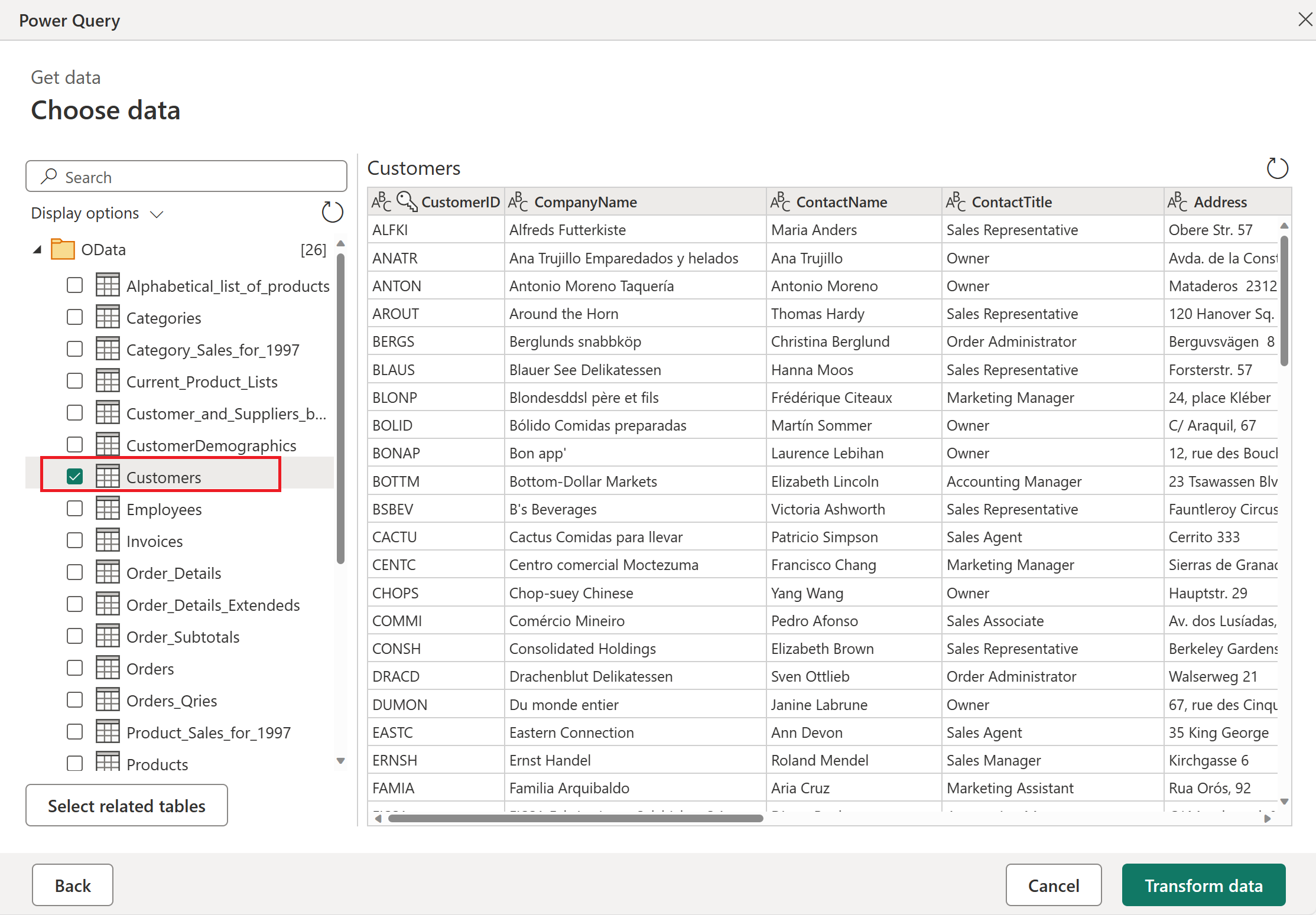
Power Query is a built-in Excel tool that helps you:
- Import data from different sources
- Clean and transform data
- Combine multiple files
- Refresh the cleaned data automatically
It works like a recorded set of cleaning steps. Once you create those steps, Excel remembers them.
For example, imagine you receive a monthly sales file with:
- Extra blank rows
- Incorrect date formats
- Customer names in one column
- Duplicate records
Instead of fixing all of that manually every month, Power Query can do it automatically.
Why Power Query Is Better Than Manual Cleaning
Manual cleaning causes several problems:
- It takes too much time
- Mistakes are easy to make
- Different people may clean the data differently
- The process must be repeated every time
Power Query solves all of these.
After setting up the query once, you only need to replace the source file and click Refresh.
Common Tasks You Can Automate
Power Query is especially useful for:
- Removing duplicates
- Splitting full names into first and last name
- Changing text to proper case
- Converting dates into the correct format
- Combining many Excel files into one table
- Removing unnecessary columns
One of the most useful features is combining files from a folder.
Suppose you have 12 monthly sales files. Instead of copying them into one workbook manually, Power Query can import all 12 automatically.
How to Open Power Query
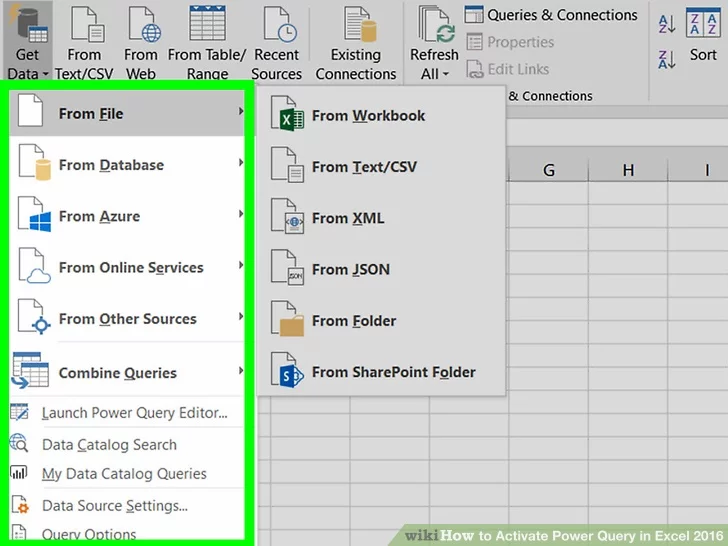
- Go to the Data tab
- Select Get Data
- Choose your data source
- Open the Power Query Editor
- Apply your cleaning steps
- Click Close & Load
Excel saves those steps for future refreshes.
Best Practices
To get the best results from Power Query:
- Keep the source files structured consistently
- Rename your query clearly
- Remove unnecessary columns early
- Avoid changing the cleaned table manually after loading it
The more organized your source data is, the better Power Query will work.
Conclusion
Power Query is one of the most powerful Excel features, yet many users still ignore it. If you regularly clean or combine data, learning Power Query can save you hours every week.
Instead of repeating the same work again and again, let Excel do it automatically.