
PowerPoint is not only for live presentations. You can also record your voice, webcam, and screen while presenting.
This is useful if you want to create:
- Online lessons
- Recorded class presentations
- Training videos
- Project explanations
Instead of presenting live every time, you record once and share the file.
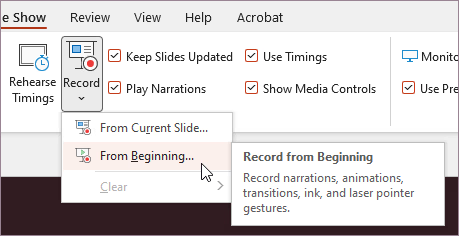
How Presentation Recording Works
PowerPoint allows you to:
- Record narration
- Record webcam video
- Add timing to slides
- Export the presentation as a video
This means your audience can watch the presentation later.
Why Recording Is Useful
Recording is especially useful for:
- Students submitting assignments
- Teachers creating lessons
- Remote work presentations
- Tutorials and demonstrations
For someone creating educational or training content, this can save a huge amount of time.
How to Record a Presentation
- Open the Record tab
- Select Record from Beginning
- Speak while moving through the slides
- Save the recording
- Export as MP4 if needed
After recording, PowerPoint remembers the narration and timings.
Best Practices
To make a good recorded presentation:
- Keep slides simple
- Speak clearly
- Avoid reading too quickly
- Use short sections
- Test your microphone first
A recorded PowerPoint can become a full video lesson without needing separate video-editing software.