
Excel Data Validation Deep Dive: Build Smart Forms That Prevent Errors
Data entry errors are one of the biggest problems in Excel. A single mistake—wrong number, misspelled name, or invalid date—can affect your entire analysis.
This is where Data Validation becomes essential.
Data Validation allows you to control what users can enter into a cell, ensuring accuracy, consistency, and professionalism in your spreadsheets.
In this article, you’ll learn how to use Data Validation to build smart, error-proof Excel forms.
What is Data Validation in Excel?
Data Validation is a feature that restricts the type of data entered into a cell.
What it is used for
- Creating dropdown lists
- Restricting numbers within a range
- Controlling date inputs
- Preventing invalid entries
- Building user-friendly forms
Creating a Drop-Down List
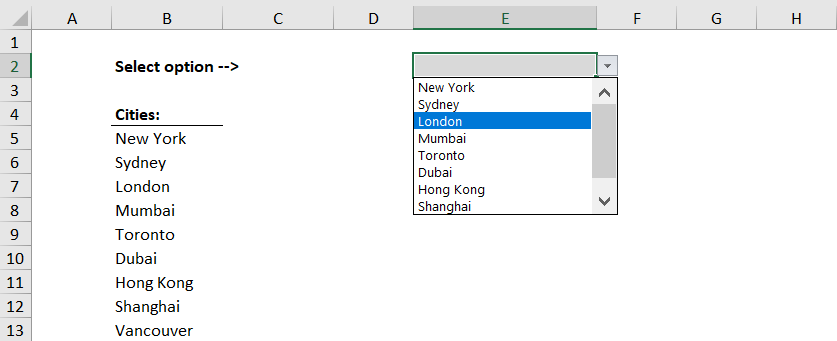
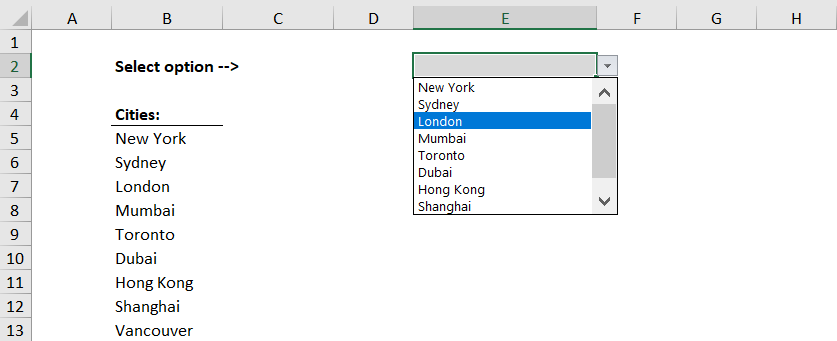
Drop-down lists are one of the most common uses.
Steps
- Select the cell
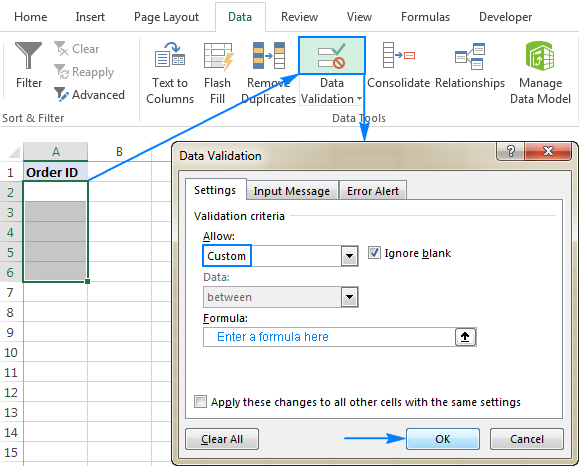
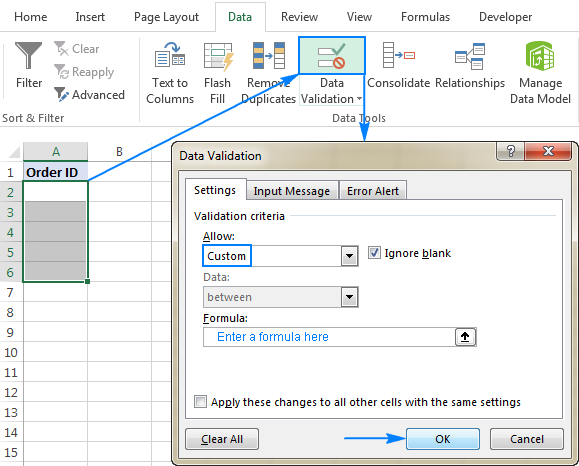
- Go to Data → Data Validation
- Choose List
- Enter values or select a range
Example Use Cases
- Departments (HR, Finance, IT)
- Status (Completed, Pending)
- Regions (North, South)
This ensures users only select valid options.
Restricting Numbers and Dates
You can limit inputs to a specific range.
Example
Allow only values between 1 and 100.
What it is used for
- Scores
- Age limits
- Budget ranges
You can also restrict dates (e.g., only future dates).
Using Custom Formulas
Advanced users can create rules using formulas.
Example
=ISNUMBER(A1)
What it is used for
- Allow only numbers
- Prevent duplicates
- Enforce complex conditions
This is where Data Validation becomes powerful.
Creating Dependent Drop-Down Lists
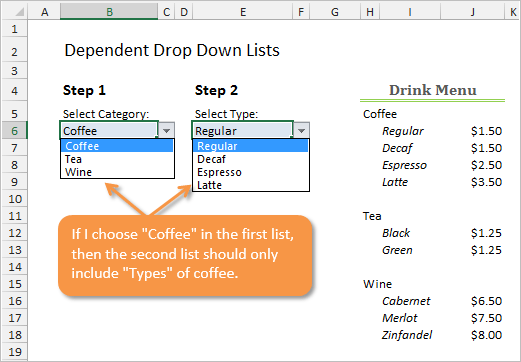
You can create dynamic dropdowns based on another selection.
Example
- Select Category → Shows relevant Category types
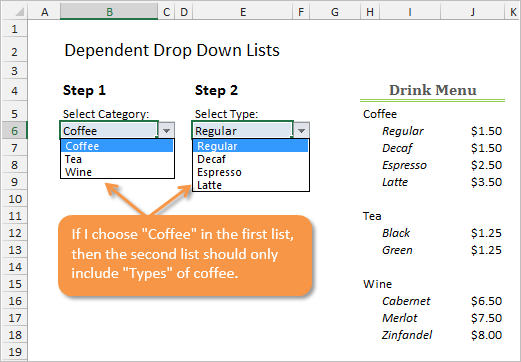
This is useful for structured forms and dashboards.
Adding Input Messages and Error Alerts
You can guide users with messages.
Types
- Input Message (before typing)
- Error Alert (after invalid entry)
Example
“Please enter a number between 1 and 100”
This improves usability.
Best Practices
- Keep lists simple
- Use named ranges
- Add clear instructions
- Test all rules
Conclusion
Data Validation is one of the most underrated Excel tools. It helps prevent errors, improve data quality, and create professional spreadsheets.
If you work with shared files or data entry, this feature is essential.