
Autosum in Excel is a mathematical operation that adds the values in a given cell. To use AutoSum in Excel follow the steps below
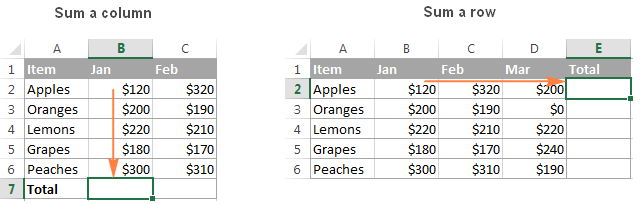
Select a cell next to the numbers you want to sum:
- To sum a column, select the cell immediately below the last value in the column.
- To sum a row, select the cell to the right of the last number in the row.
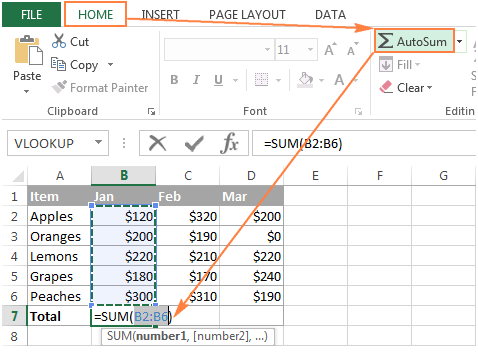
- Click the AutoSum button on either the Home or Formulas tab.
A Sum formula appears in the selected cell, and a range of cells you’re adding gets highlighted (B2:B6 in this example):
In most cases, Excel selects the correct range to total. In a rare case when a wrong range is selected, you can correct it manually by typing the desired range in the formula or by dragging the cursor through the cells you want to sum.
- Press the Enter key to complete the formula.
Now, you can see the calculated total in the cell, and the SUM formula in the formula bar:

very easy just like the shortcut using the keyboard which is Alt+=