
Good Morning.
How was your night?
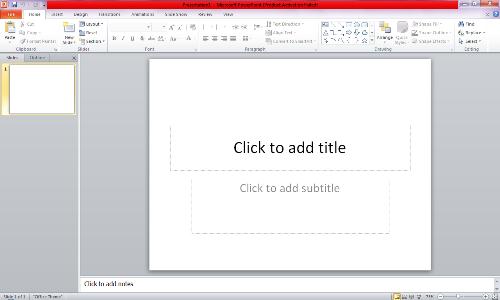
I will be teaching you how to add transitions between your slides on MS Powerpoint. Transitions bring about beautification of your slides. Without them, your slides will look so dull.
Slide transitions are motion effects that occur in Slide Show view when you move from one slide to the next during a presentation. You can control the speed, add sound, and even customize the properties of transition effects.
This teaching is shared into three sub heads for better understanding. These are:
How to Add a transition to a slide
How to Set the timing for a transition
How to Add sound to slide transitions
How to Add a transition to a slide
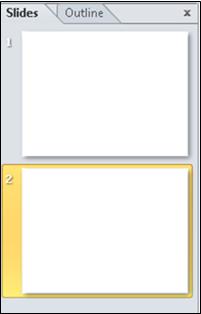
- In the pane that contains the Outline and Slides tabs, click the Slides
- Select the slide thumbnail of the slide that you want to apply a transition to.
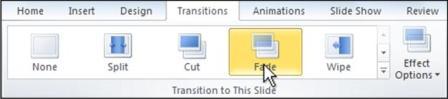
- On the Transitions tab, in the Transition To This Slide group, click the slide transition effect that you want for that slide.
Select a transition in the Transition to This Slide group. In the example, a Fade transition has been selected.
To see more transition effects, click the More button .
Note To apply the same slide transition to all the slides in your presentation: follow steps 2 through 4 above, and then on the Transitions tab, in the Timing group, click Apply To All.
How to Set the timing for a transition
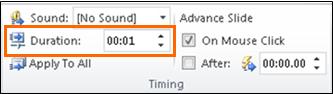
To set the duration of the transition between the previous slide and the current slide, do the following:
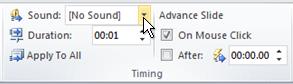
- On the Transitions tab, in the Timing group, in the Duration box, type or select the speed that you want.
To specify how long before the current slide advances to the next, use one of the following procedures:
- To advance the slide when you click the mouse, on the Transitions tab, in the Timing group, select the On Mouse Click check box.
- To advance the slide after a specified time, on the Transitions tab, in the Timing group, in the After box, enter the number of seconds that you want.
How to Add sound to slide transitions
- In the pane that contains the Outline and Slides tabs, click the Slides
- Select slide thumbnail of the slide that you want to add a sound to.
- On the Transitions tab, in the Timing group, click the arrow next to Sound, and then do one of the following:
- To add a sound from the list, select the sound that you want.
- To add a sound not found on the list, select Other Sound, locate the sound file that you want to add, and then click OK.
Thank you for your patient by going through this teaching. Your questions are highly welcome.
HAPPY NEW MONTH!