

Good Morning.
How was your night?
Today, we shall continue with our series on how to share information using Microsoft picture manager. The aspect we are treating today is how to send pictures to another office program. What this means is: how to can use same picture on multiple office program without the need to re-design.
To do this, kindly follow the steps below:
- Select the pictures you want to send.
- On the File menu, point to Send To, and then click Microsoft Office.
- Do one of the following:
- Send Pictures to an open Word or PowerPoint file
- Make sure the file is open on your computer.
- Under Insert into an open file, click the arrow, and then select the file you want to insert the pictures into.
- Click Send.
Note To send pictures with different program-specific settings, click Options, select the settings you want, click OK, and then click Send.
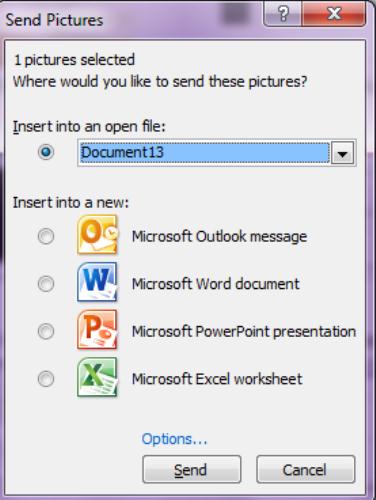
- Send to a new file
- Under Insert into a new, click the file type you want to insert pictures into.
- Click Send.
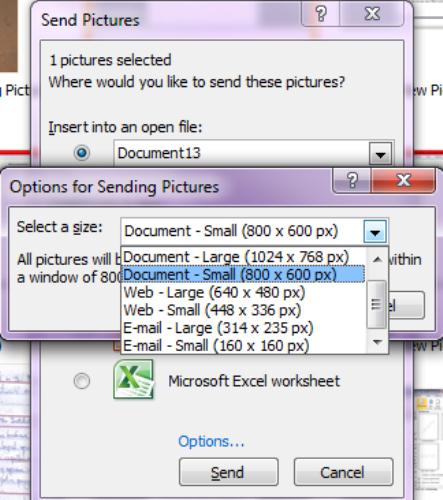
Note To send pictures with different program-specific settings, click Options, select the settings you want, click OK, and then click Send.
Should you have question(s), please do not hesitate to post them here.
Thank you.