

Good Morning.
How was your night?
Today, I want to teach you how you can manage your pictures using Microsoft Picture manager.
With Microsoft Picture Manager you can manage, edit, share, and view your pictures from where you store them on your computer. The Locate Pictures feature helps you find your pictures with powerful search, and when you find them, Picture Manager can correct your pictures, if needed. Use the picture editing tools to crop, expand, or copy and paste. Sharing pictures is easier with Picture Manager: send pictures in e-mail messages or create a SharePoint picture library on your corporate intranet.
Below are what I will be teaching you:
How to Start the Manager
How to Manage your Pictures
How to Edit your Pictures
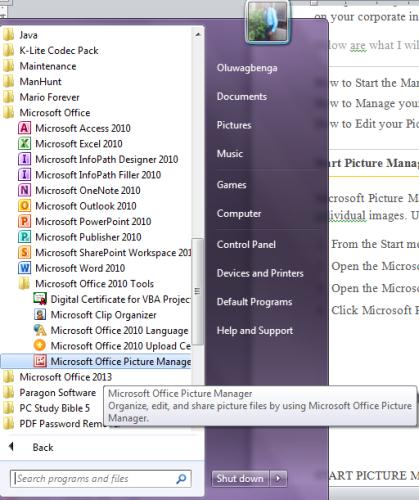
Start Picture Manager from the Start menu
Microsoft Picture Manager is installed with all Office suites and can be used on individual images. Use the following instructions to start Picture Manager.
- From the Start menu, select Programs or All Programs.
- Open the Microsoft Office
- Open the Microsoft Office Tools
- Click Microsoft Picture Manager.
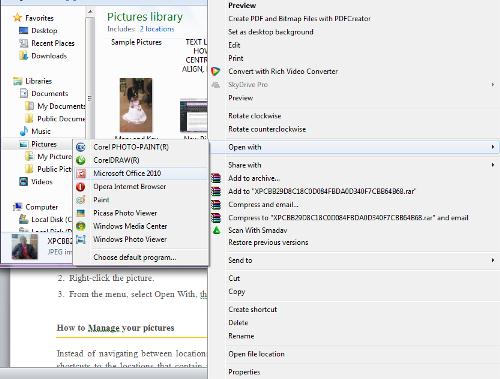
Also, you can start your Picture Manager via the below steps
- On your computer, locate the picture you want to work with.
- Right-click the picture.
- From the menu, select Open With, then click Microsoft Picture Manager.
How to Manage your pictures
Instead of navigating between locations and long lists of folders, you can add shortcuts to the locations that contain your images. Picture Manager does not require you to create new categories or to import pictures. Once you add a shortcut, you work with pictures from that location as if you were working from the file system.
Also, you can:
Create shortcuts to your pictures
You can create a shortcut to the folder that contains your pictures, or to each picture.
Create a shortcut to a folder
- Locate the folder that contains your pictures.
- Right-click the folder and select Create Shortcut.
- Drag the shortcut to your desktop.
Create a shortcut to a picture
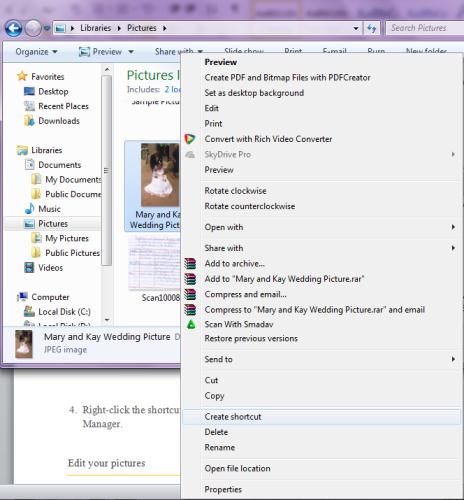
- On your computer, locate a picture.
- Right-click the picture and select Create Shortcut.
- Drag the shortcut to your desktop.
- Right-click the shortcut, select Open With and then click Microsoft Picture Manager.
Edit your pictures
By using the Picture menu, you can change how your pictures look by adjusting the following settings:
- Brightness and contrast
- Color
- Crop
- Rotate and flip
- Red-eye removal
- Resize
- Compress picture
When you have finished editing, you can save the changes. Click Save to save your changes, or use Save As to create a new image, while keeping the original.