
HOW TO ADD, REMOVE, OR MODIFY A TRUSTED LOCATION FOR YOUR FILES (SERIES ONE)
Good Morning.
How was your night?
Today, I want to start a serial teaching on how to add, remove or modify a trusted location for your files on MS Access.
What is a trusted location?
A trusted location is a folder on your hard disk or a network folder. Any file that you put in a trusted location can be opened without being checked by the Trust Center, and does not open in Protected View. In this article, you can learn more about trusted locations, also how and where you can create them. It also outlines precautions you should take before you use a trusted location.
The series for this tutorial are:
How to add a Trusted Location
How to Remove a Trusted Location
How to Modify a Trusted Location
Let’s start with first series now, please.
How to Add a Trusted Location
The steps to do this are:
- Click the File The Microsoft Office Backstage view appears.
- Under Help, click Options; the Options dialog box appears.
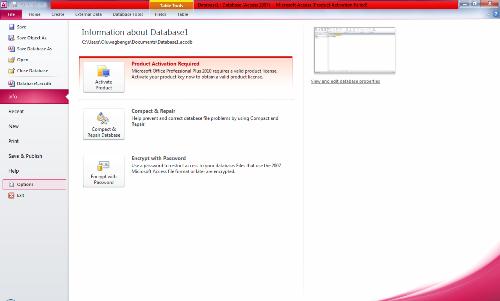
3. Click Trust Center.
4.Click Trust Center Settings.
5. In the Trust Center, click Trusted Locations.
6. Click the Add new location button; the Trusted Locations dialog box appears.
7. Click Browse to find the folder; select a folder and then click OK.

Note: Outlook does not have trusted location features.