

Good Morning.
How was your night?
You are welcome to another series on How to add, remove or modify a trusted location for your files using MS Access.
I quick recap as to what we did in the second series.
We spoke about how to remove a trusted location from your files by clicking on remove (after you would have opened your trust centre settings). Do you still remember?
Today, we shall be looking at how to modify trusted location for your files.
What is meant by modify?
To modify simply means to change, metamorphose from a previous state to new state (preferably a suitable one). So, as a user of MS Access, you can as well modify the trusted location to your suitable format.
Then, how would you get it done?
The prescribed steps are stated below:
Modify a trusted location
Use the following instructions to modify a trusted location.
- Click the File The Microsoft Office Backstage view appears.
- Under Help, click Options; the Options dialog box appears.
- Click Trust Center.
- Click Trust Center Settings.
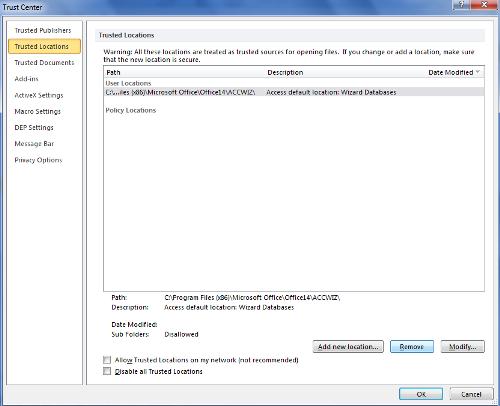
- In the Trust Center, click Trusted Locations.
- In the Trusted Locations list, select a location, and then click Modify.
- Make the modifications you want.
- Click OK.
Your questions are welcome.
Thank you.