Good Morning.
How was your night?
I will like to continue with our series as to this topic.
A quick recap of what we did in series one:
We defined what a trusted location which we said is a folder on your hard disk or a network folder. Any file that you put in a trusted location can be opened without being checked by the Trust Center, and does not open in Protected View.
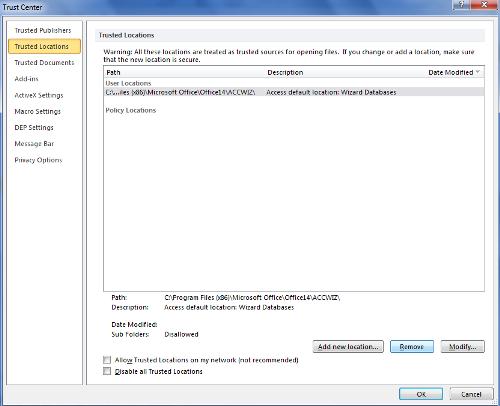
Today we be looking at how to remove a trusted location from your files.
Remove a Trusted Location
Kindly follow the steps below to do the removing of the trusted location
- Click the File The Microsoft Office Backstage view appears.
- Under Help, click Options; the Options dialog box appears.
- Click Trust Center.
- Click Trust Center Settings.
- In the Trust Center, click Trusted Locations.
- Select the location to be removed, and then click Remove.
- Click OK.