

Formulas are equations that can perform calculations, return information, manipulate the contents of other cells, test conditions, and more. A formula always starts with an equal sign (=). Just as we have series of formulas in mathematics, physics, chemistry and the like. With the help of Microsoft Excel, you can develop your formula. This will reduce the stress of doing the calculations one after the other because with the help of the formulas you can automatically do all calculations at once. Hope got that.
The following table shows some examples of formulas and their descriptions.
| Formula | Description |
| =5+2*3 | Adds 5 to the product of 2 times 3. |
| =SQRT(A1) | Uses the SQRT function to return the square root of the value in A1. |
| =TODAY() | Returns the current date. |
| =IF(A1>0,”Plus”,”Minus”) | Tests the cell A1 to determine if it contains a value greater than 0. If the result of the test is true, the text “Plus” appears in the cell; if the result is false, the text “Minus” appears. |
Having seen these formulas, you would have been wondering how could create yours. Be calm as we shall look into that now.
The below steps talk about how to create formulas using Microsoft Excel:
| Select a cell and start typing
In a cell, type an equal sign (=) to start the formula. |
| Fill in the rest of the formula
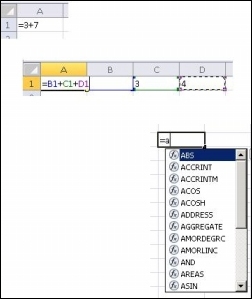
Do one of the following: Type a combination of numbers and operators; for example, 3+7. Use the mouse to select other cells (inserting an operator between them). For example, select B1 and then type a plus sign (+), select C1 and type +, and then select D1. Type a letter to choose from a list of worksheet functions. For example, typing “a” displays all available functions that start with the letter “a.” |
| Complete the formula
To complete a formula that uses a combination of numbers, cell references, and operators, press ENTER. To complete a formula that uses a function, fill in the required information for the function and then press ENTER. For example, the ABS function requires one numeric value — this can be a number that you type, or a cell that you select that contains a number. Your completed formulas might look like the following examples:
|