

Good Morning.
How was your night?
Today, I want to continue with the teaching on how to create a task list and work breakdown structure using Microsoft Project.
In our last lesson, we talked about how to create task list and organising it. Hope you still remember.
Let’s continue by looking at: Work Breakdown Structures and How to Enter Durations.
Work Breakdown Structures
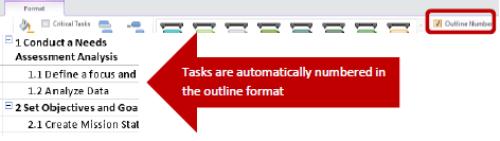
A work breakdown structure is a logical hierarchy of tasks in a project represented by alphanumeric codes, similar to an outline.
To view outline numbers on all summary tasks and subtasks, under the Format Tab, check the Outline Number Box.
Entering Durations
There are a few specifics to understand when entering durations for tasks in Project. The first difference is the differentiation between Duration and Work. Work is the total number of hours between all contributors spent on the task and Duration is the amount of time in which you want the task to be completed. It is also important to note that 1 day is 8 hours and 1 week is 40 hours. A unit is the percentage of a resource’s time assigned to a task. Hence, Work = Duration + Units. You choose which to enter, Project calculates the others.
- When we enter durations, we enter them in the subtask cells. The duration of the summary task will automatically update according to the subtasks. To enter the duration of a subtask, under the Duration column, click inside the empty cell.

Simply type in the cell the duration you plan to work on the specific task. Use units “mo” for months, “w” for weeks, “d” for days, “h” for hours and “m” for minutes.
A common mistake is to try to fill in all the information all the way across (as one would in Excel). Instead, leave Start and Finish dates empty and let Project fill them in. when manually entered, it deadlocks them as constraints which makes Project less useful.
- To add work into the spreadsheet to see the amount of total hours the task will take, select Add new Column.
Scroll down and select Work.
The number of hours of total work completed for the task is automatically calculated depending on the number of Resource Names and the set.

Note: your questions are welcome.
Thank you.