
Good Morning.
How was your night?
I want to teach you how to validate records by using queries on your MS Access.
The steps to follow in doing this kindly follow the steps below:
In the Navigation pane, copy and paste the Categories table, naming the new object Copy Of Categories, so that you have a backup in the event that your query produces unexpected results.
On the Create tab, in the Queries group, click the Query Wizard Then with Simple Query Wizard selected in the New Query dialog box, click OK.
Display Table: Categories in the Tables/Queries list, and in the Available Fields list, double-click CategoryName to move it to the Selected Fields
Display Table: Products in the Tables/Queries list, and in the Available Fields list, double-click ProductName and UnitPrice to move them to the Selected Fields
Click Finish to create the query by using the default detail setting and title and to run the query.
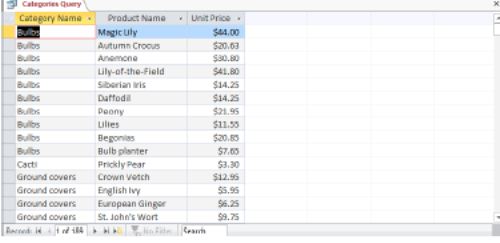
The current query results include the products in all categories. We want to raise the prices of the products in only the Bulbs and Cacti categories, so let’s change the query to select only those categories.
Switch to Design

In the Criteria row of the CategoryName field, enter bulbs, and in the or row of the same field, enter cacti. Then press the Enter
Run the query to confirm that only bulbs and cacti are listed, and then return to Design
The query now selects the records we want to change. Let’s convert this select query to an update query so that we can make a change to the selected records.
On the Design tool tab, in the Query Type group, click the Update

In the Update To row of the UnitPrice column, enter [UnitPrice]* Then press the Enter
TIP Enclosing UnitPrice in square brackets indicates that it is a database object—in this case, a field in a table. If you use the Expression Builder to insert this expression, it looks like this:
Because this description of the field includes the table in which it is found, you can insert this expression in other tables.
Without running the query, switch to Datasheet view to display a list of the same unit prices you viewed earlier; they have not been changed yet.
TIP In a select query, clicking the View button on the Home tab or the Datasheet View button on the View Shortcuts toolbar is the same as clicking the Run button. But in an update query, clicking the View button or the Datasheet View button simply displays a list of the fields that will be updated.
Switch to Design Then run the query, which displays a message box asking you to confirm that you want to update the records.

This message box cautions that you can’t undo the changes you are about to make.
In the message box, click Yes, and then switch to Datasheet Notice that the prices in the UnitPrice field have been increased by 10 percent.
Your questions are welcome.
Thank you.