
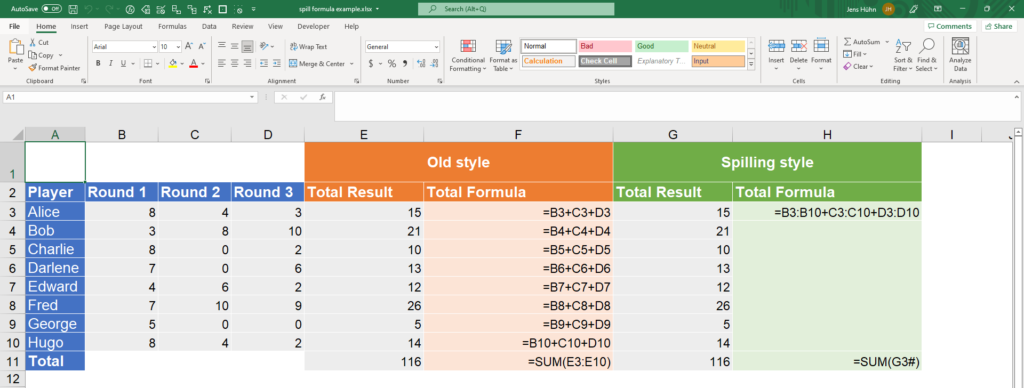
Modern Excel has changed the way professionals work with data through Dynamic Arrays. Instead of copying formulas down hundreds of rows, a single formula can now automatically spill results into multiple cells.
This makes data analysis faster, cleaner, and far more dynamic.
Three of the most powerful dynamic array functions are:
- FILTER
- SORT
- UNIQUE
These functions help analysts quickly clean, organize, and extract insights from data.
In this article, you’ll learn how to use them like a professional.
What Are Dynamic Arrays in Excel?
Dynamic Arrays allow a single formula to return multiple results automatically into neighboring cells.
This feature is known as spilling.
What it is used for
- Creating dynamic reports
- Extracting filtered records
- Generating unique lists
- Building dashboards
Unlike older Excel methods, you no longer need helper columns for many tasks.
FILTER — Extract Only the Data You Need
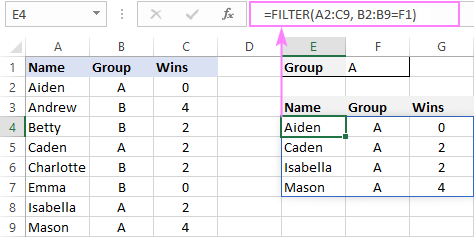
The FILTER function returns only rows or columns that meet a condition.
What it is used for
- Sales by region
- High-value customers
- Orders above a threshold
- Department-specific reports
Syntax
=FILTER(array, include, [if_empty])
Example
=FILTER(A2:C100,B2:B100="North","No Records")
This returns only rows where the region is North.
SORT — Organize Results Automatically
The SORT function sorts data dynamically.
What it is used for
- Ranking sales
- Alphabetical lists
- Sorting dates
- Dashboard outputs
Syntax
=SORT(array, [sort_index], [sort_order])
Example
=SORT(A2:C100,2,-1)
This sorts by the second column in descending order.
UNIQUE — Remove Duplicates Instantly
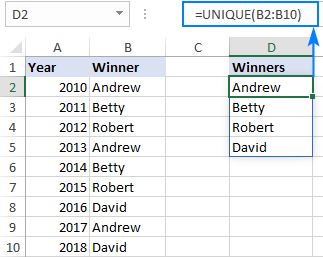
The UNIQUE function returns distinct values from a dataset.
What it is used for
- Customer lists
- Unique product categories
- Region summaries
- Data cleaning
Syntax
=UNIQUE(array)
Example
=UNIQUE(B2:A10)
This returns only distinct values.
Combining FILTER, SORT, and UNIQUE
The real power comes from combining them.
Example
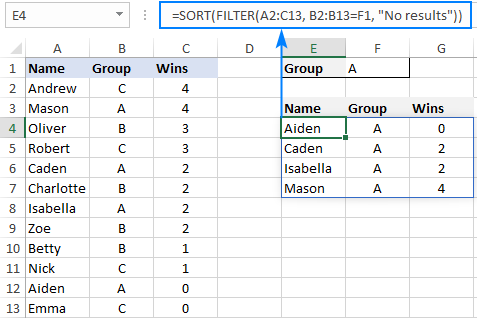
=SORT(UNIQUE(FILTER(A2:A100,B2:B100="North")))
What it is used for
- Clean filtered reports
- Dashboard dropdowns
- Dynamic category lists
This creates a sorted unique list for only the North region.
Why Dynamic Arrays Are Better Than Old Excel Methods
Older methods required:
- Helper columns
- Advanced filters
- Pivot tables
- Manual sorting
Dynamic arrays simplify all of these into one formula.
Benefits
- Faster workflows
- Cleaner sheets
- Less manual effort
- Better dashboard automation
Best Practices
To use dynamic arrays effectively:
- Keep spill ranges clear
- Use structured tables
- Combine functions for flexibility
- Test outputs with changing data
These habits improve performance.
Common Mistakes to Avoid
- Blocking spill ranges
- Using inconsistent data types
- Forgetting compatibility with older Excel versions
Always ensure the cells below the formula are empty.
Conclusion
Dynamic Arrays are one of the biggest upgrades in modern Excel. Functions like FILTER, SORT, and UNIQUE allow users to build dynamic, automated, and highly responsive spreadsheets.
For data analysts, dashboard creators, and business users, mastering these functions can significantly improve efficiency and reporting quality.
Once you start using dynamic arrays, many old manual Excel methods become unnecessary.