Data validation
Data validation is very important in the sense that it helps us avoid mistakes that can be avoided. Let’s assume you are recording student exam marks and you know the minimum is 0 and the maximum is 100. You can take advantage of validation features to ensure that only values between 0 and 100 are entered.
Add a new sheet in your workbook by clicking on the plus button at the bottom of the worksheet.
Add a column for S/N, Name and Score. Your sheet should look as follows
| S/N | Name | Score |
| 1 | Jane | |
| 2 | James | |
| 3 | Jones | |
| 4 | Jonathan | |
| 5 | John |
- Click on the DATA tab
- Select the cells C2 to C6 (The cells that will be used to record the scores)

- Click on Data validation drop down list.
- Click on Data validation.
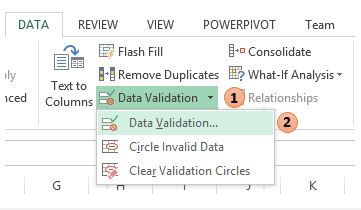 SELECT DATA VALIDATION
- You will get the following dialogue window
 SET DATA VALIDATION RULES
- Click on Error Alert tab
- Enter the alert title and message as shown in the diagram below.
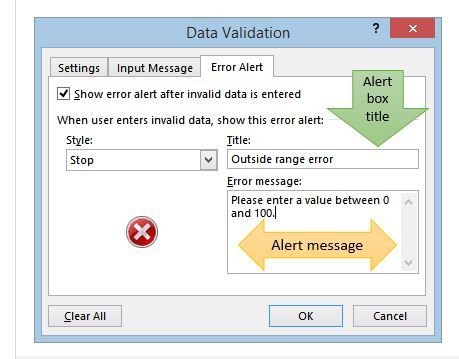 AFTER SETTING THE RULES
- Click on OK button
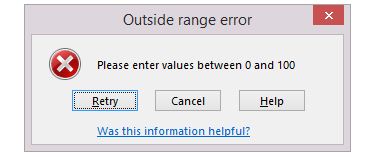
- Try to enter a score greater than 200. You will get the following error message