
Formulas and functions are the building blocks of working with numeric data in Excel. This article introduces you to formulas and functions.
In this article, we will cover the following topics.
- What is a formula?
- Mistakes to avoid when working with formulas in Excel
- What is a function? (Function Wizard)
- The importance of functions
- Common functions
- Numeric Functions
- String functions
- Date Time functions
Tutorials Data
For this tutorial, we will work with the following datasets.
Home supplies budget
| S/N | ITEM | QTY | PRICE | SUBTOTAL | Is it Affordable? |
| 1 | Mangoes | 9 | 600 | ||
| 2 | Oranges | 3 | 1200 | ||
| 3 | Tomatoes | 1 | 2500 | ||
| 4 | Cooking Oil | 5 | 6500 | ||
| 5 | Tonic Water | 13 | 3900 |
House Building Project Schedule
| S/N | ITEM | START DATE | END DATE | DURATION (DAYS) |
| 1 | Survey land | 04/02/2015 | 07/02/2015 | |
| 2 | Lay Foundation | 10/02/2015 | 15/02/2015 | |
| 3 | Roofing | 27/02/2015 | 03/03/2015 | |
| 4 | Painting | 09/03/2015 | 21/03/2015 |
What is a formula?
It is the simplest form, a formula is an expression made up of cell addresses and arithmetic operators. Formulas can also be made up of discrete values i.e. =6*3. Excel evaluates the formula to a value. An example of a formula looks as follows.
=A2 * D2 / 2
HERE,
- “=” tells Excel that this is a formula, and it should evaluate it.
- “A2″ * D2” makes reference to cell addresses A2 and D2 then multiplies the values found in these cell addresses.
- “/” is the division arithmetic operator
- “2” is a discrete value
Formulas practical exercise
We will work with the sample data for the home budget to calculate the subtotal.
- Create a new workbook in Excel
- Enter the data shown in the home supplies budget above.
- Your worksheet should look as follows.
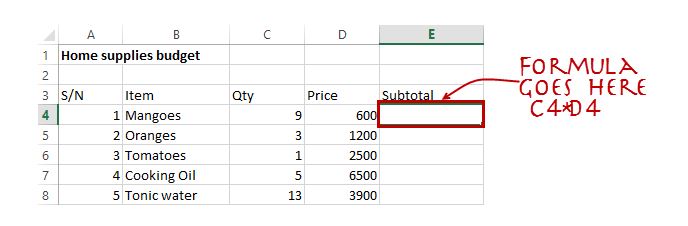
We will now write the formula that calculates the subtotal
Set the focus to cell E4
Enter the following formula.
=C4*D4
HERE,
- “C4*D4” uses the arithmetic operator multiplication (*) to multiply the value of the cell address C4 and D4.
Press enter key
You will get the following result

Mistakes to avoid when working with formulas in Excel
- Remember the rules of Brackets of Division, Multiplication, Addition, & Subtraction (BODMAS). This means expressions are brackets are evaluated first. For arithmetic operators, the division is evaluated first followed by multiplication then addition and subtraction is the last one to be evaluated. Using this rule, we can rewrite the above formula as =(A2 * D2) / 2. This will ensure that A2 and D2 are first evaluated then divided by two.
- Formulas usually work with numeric data; you can take advantage of data validation to specify the type of data that should be accepted by a cell i.e. numbers only.
- To ensure that you are working with the correct cell addresses referenced in the formulas, you can press F2 on the keyboard. This will highlight the cell addresses used in the formula, and you can cross check to ensure they are the desired cell addresses.
- When you are working with many rows, you can use serial numbers for all the rows and have a record count at the bottom of the sheet. You should compare the serial number count with the record total to ensure that your formulas included all the rows.