
If you’re still using your mouse for everything in Excel, you’re wasting valuable time. Professionals and data analysts rely heavily on keyboard shortcuts to work faster, reduce effort, and improve productivity.
Learning Excel shortcuts can dramatically speed up your workflow and make you more efficient, especially when working with large datasets.
In this article, you’ll discover essential Excel shortcuts that can save you hours every week.
Why Excel Shortcuts Matter
Using shortcuts helps you:
- Work faster without switching between keyboard and mouse
- Improve accuracy and efficiency
- Navigate large datasets easily
- Perform repetitive tasks quickly
Mastering shortcuts is one of the easiest ways to level up your Excel skills.
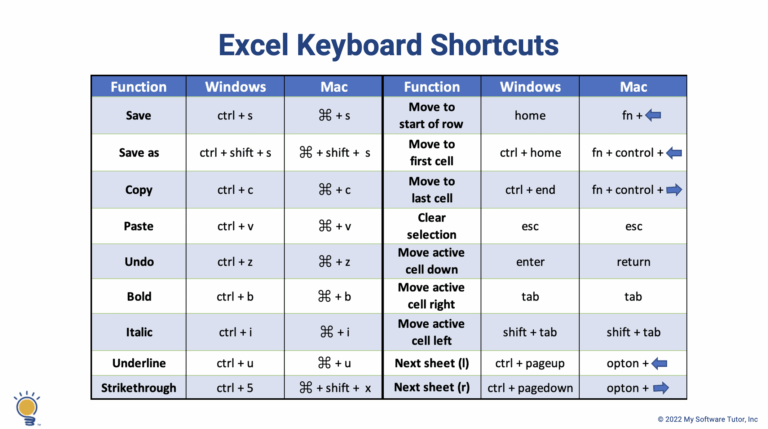
Basic Navigation Shortcuts
These shortcuts help you move quickly within a worksheet.
- Ctrl + Arrow Keys → Jump to the edge of data
- Ctrl + Home → Go to cell A1
- Ctrl + End → Go to the last used cell
- Page Up / Page Down → Move up or down one screen
These are essential when working with large datasets.
Selection Shortcuts
Selecting data quickly is crucial for efficiency.
- Ctrl + Shift + Arrow Keys → Select large data ranges
- Ctrl + A → Select entire dataset
- Shift + Space → Select entire row
- Ctrl + Space → Select entire column
These shortcuts eliminate the need for dragging your mouse across large datasets.
Editing Shortcuts
These shortcuts make editing data faster.
- F2 → Edit active cell
- Ctrl + C → Copy
- Ctrl + V → Paste
- Ctrl + X → Cut
- Ctrl + Z → Undo
- Ctrl + Y → Redo
Using these shortcuts speeds up everyday tasks.
Formatting Shortcuts
Formatting is faster with shortcuts.
- Ctrl + B → Bold
- Ctrl + I → Italic
- Ctrl + U → Underline
- Ctrl + 1 → Open Format Cells dialog
- Alt + H + O + I → Auto-fit column width
These help you format spreadsheets quickly without navigating menus.
Data Entry Shortcuts
Speed up data entry with these:
- Ctrl + Enter → Fill selected cells with the same value
- Alt + Enter → New line within a cell
- Ctrl + D → Fill down
- Ctrl + R → Fill right
These are especially useful when working with repetitive data.
Formula Shortcuts
For users working with formulas:
- Alt + = → AutoSum
- Ctrl + ` → Show formulas
- F4 → Toggle absolute/relative references
Example:
=SUM(A1:A10)
These shortcuts simplify working with formulas.
Worksheet Management Shortcuts
Manage worksheets easily:
- Shift + F11 → Insert new worksheet
- Ctrl + Page Up / Page Down → Switch between worksheets
This helps when working with multiple sheets.
Best Shortcuts for Data Analysts
If you work with data frequently, focus on these:
- Ctrl + Arrow Keys
- Ctrl + Shift + Arrow Keys
- Alt + =
- F2
- Ctrl + 1
These shortcuts alone can significantly improve your speed.
Tips for Mastering Excel Shortcuts
- Practice daily
- Start with a few shortcuts at a time
- Use them consistently
- Avoid switching back to the mouse
With time, these shortcuts will become second nature.
Common Mistakes to Avoid
- Trying to memorize too many shortcuts at once
- Not practicing regularly
- Relying too much on the mouse
Consistency is key to mastering shortcuts.
Conclusion
Excel shortcuts are one of the fastest ways to improve your productivity. By reducing reliance on the mouse and using keyboard commands, you can complete tasks faster and work more efficiently.
Whether you are a beginner or an advanced user, mastering these shortcuts will save you hours every week and make you more effective in Excel.