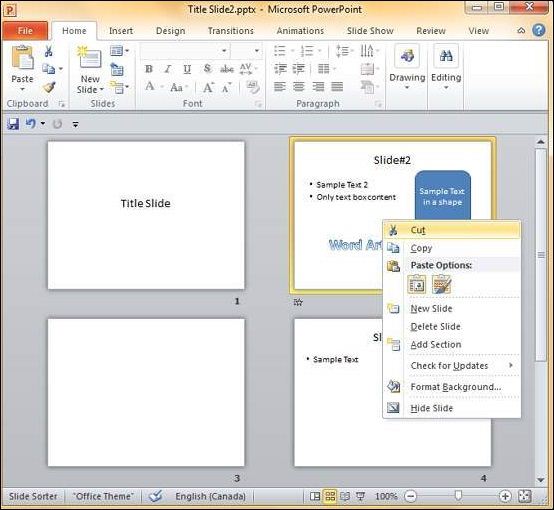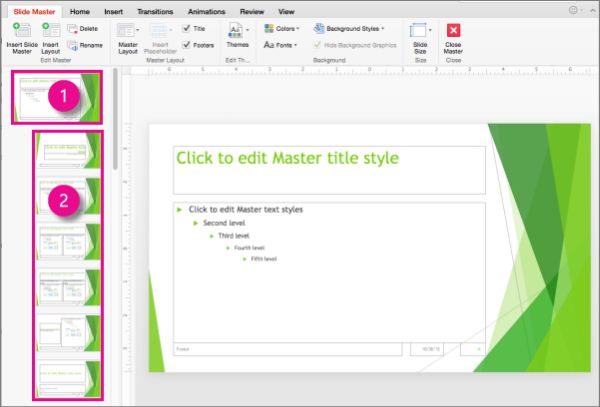
You can rearrange slides from two views in PowerPoint – Normal View and Slide Sorter View. Given below are the steps to rearrange slides from different views.
Normal View
Step 1 − Select the slide to be moved.
Step 2 − Left click on the slide and drag it to the position in the sequence where you want to place it. PowerPoint will indicate the insert position with a line in-between existing slides.
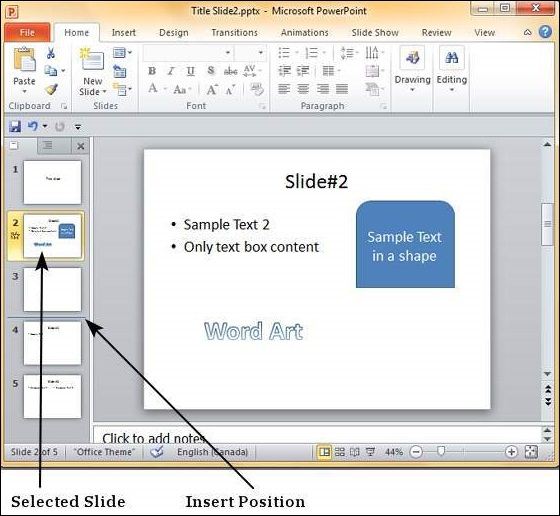
Step 3 − When you get to the right position release the left click button to insert the slide. Alternately you can also cut the selected slide and paste it back in the sequence as shown below.


Slide Sorter View
Let us now understand how the Slide Sorter View works.
Step 1 − Select the slide to be moved.
Step 2 − Left click on the slide and drag it to the position in the sequence where you want to place it. PowerPoint will indicate the insert position with a line in-between existing slides.

Step 3 − When you get to the right position release the left click button to insert the slide. Alternately you can also cut the selected slide and paste it back in the sequence as shown below.