
Microsoft Excel is widely used for organizing and analyzing structured data. However, data does not always come in a clean format. Sometimes, information appears combined in a single column — such as full names, addresses, or comma-separated values.
This is where Text to Columns becomes extremely powerful.
The Text to Columns feature allows you to split data in one column into multiple columns based on a delimiter (such as commas or spaces) or fixed width.
This article explains what Text to Columns is, when to use it, and how to apply it effectively in real-world scenarios.
What Is Text to Columns?
Text to Columns is an Excel tool that separates text from one column into multiple columns using:
- Delimiters (comma, space, tab, semicolon)
- Fixed width (specific character positions)
It is commonly used for:
- Splitting first and last names
- Separating city and state
- Breaking apart comma-separated values
- Cleaning imported CSV files

When Should You Use Text to Columns?
You should use Text to Columns when:
- Data is combined into one column
- You need structured, analyzable columns
- You are cleaning imported data
- Preparing data for Pivot Tables or formulas
Example of unstructured data:
| Full Name |
|---|
| John Smith |
| Mary Johnson |
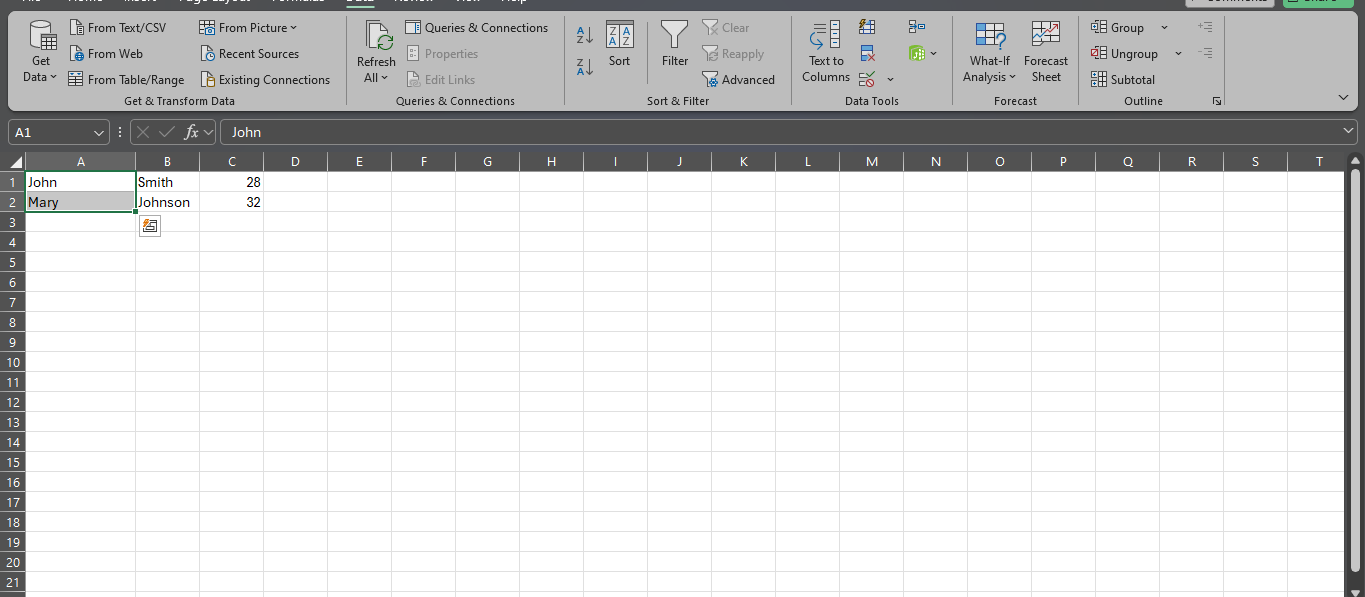
After using Text to Columns:
| First Name | Last Name |
|---|---|
| John | Smith |
| Mary | Johnson |
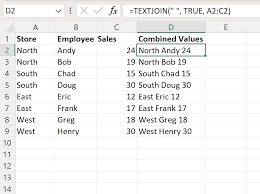
Method 1: Using Delimited Option
Delimited means Excel separates data using a character such as:
- Comma (,)
- Space ( )
- Tab
- Semicolon (;)
Example: Splitting Comma-Separated Data
Suppose you have:
John,Smith,28,Lagos
Step-by-Step Guide:
- Select the column containing the data
- Go to the Data tab
- Click Text to Columns
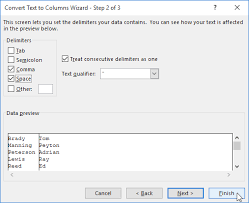
- Choose Delimited → Click Next
- Select the appropriate delimiter (e.g., Comma)
- Click Finish
Excel will automatically split the data into separate columns.
Method 2: Using Fixed Width Option
Fixed Width splits text based on character position rather than a symbol.
Use this when:
- Data has consistent spacing
- Columns are aligned in a specific structure
Example:
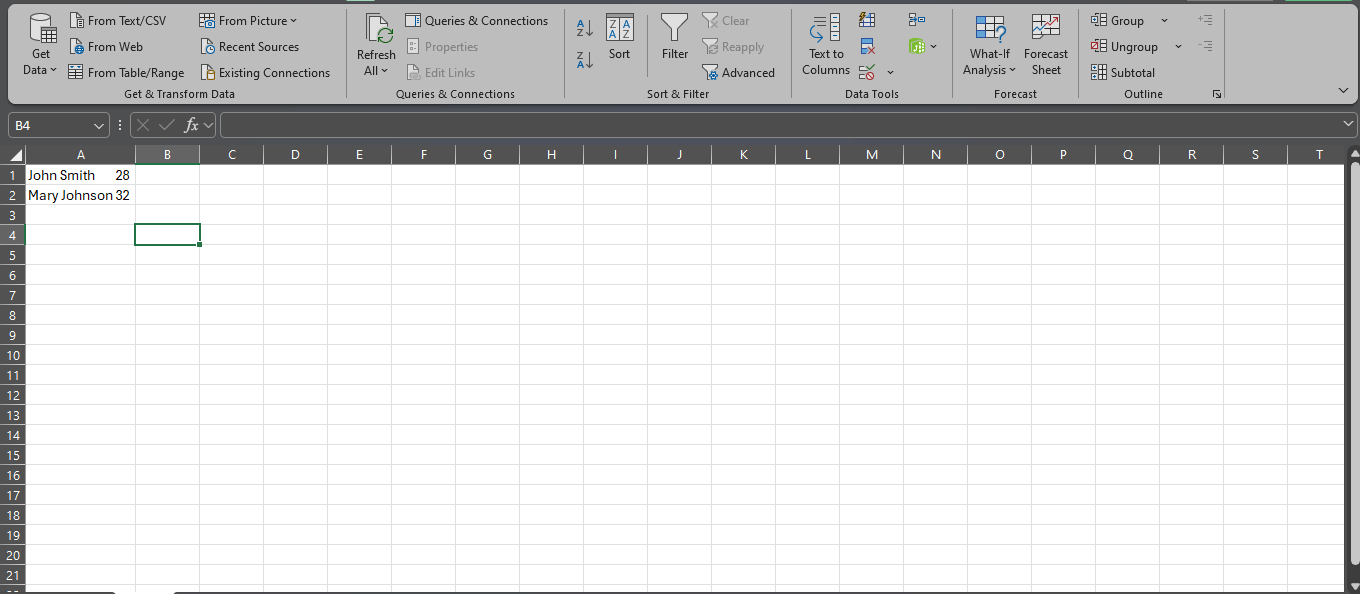
Steps:
- Select the column
- Click Text to Columns
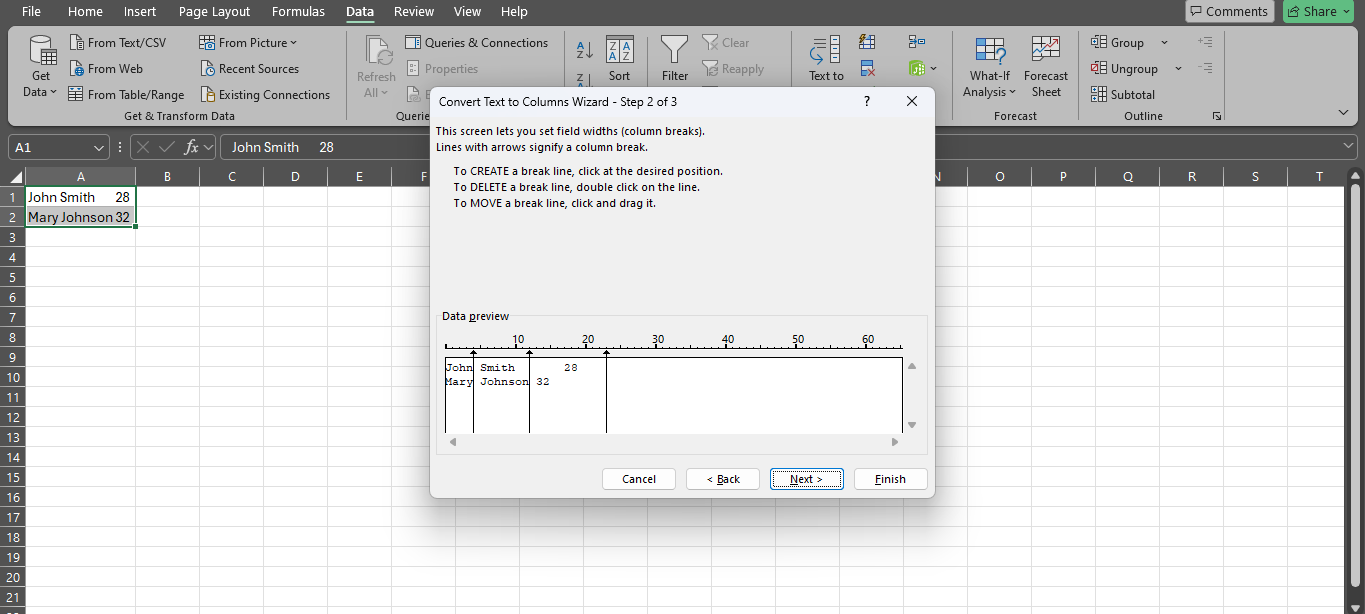
- Choose Fixed Width
- Insert break lines where you want splits
- Click Finish
Advanced Options in Text to Columns
Excel also allows you to:
- Specify column data format (Text, Date, General)
- Prevent certain columns from being split
- Choose destination column for output
This is important when:
- Working with leading zeros (e.g., account numbers)
- Splitting date values
- Cleaning imported CSV files
Common Mistakes to Avoid
- Not backing up original data
- Forgetting to select the correct delimiter
- Overwriting adjacent data
- Losing leading zeros in numeric fields
- Splitting when Power Query would be more appropriate
Always review your data after splitting.
Text to Columns vs Flash Fill
Excel also offers Flash Fill, which automatically detects patterns.
Difference:
| Feature | Text to Columns | Flash Fill |
|---|---|---|
| Manual delimiter selection | Yes | No |
| Pattern-based automation | No | Yes |
| Best for structured splitting | Yes | Sometimes |
Text to Columns is more controlled and reliable for structured data.

Best Practices for Using Text to Columns
- Always check delimiter consistency
- Duplicate your data before splitting
- Format destination columns beforehand
- Use “Text” format to preserve IDs
- Validate output before analysis
Proper data preparation improves accuracy in Pivot Tables, charts, and formulas.
Conclusion
Text to Columns is one of the most powerful yet underused features in Microsoft Excel. It transforms messy, combined data into structured columns ready for analysis. Whether cleaning CSV imports, splitting names, or organizing addresses, mastering this feature significantly improves productivity and data accuracy.
For anyone working with raw data, Text to Columns is an essential Excel skill.