
Many Power BI users import, clean, and transform the same data again and again in different reports. Over time, this creates duplicated effort, inconsistent calculations, and reports that become difficult to maintain.
A smarter approach is to use Power BI Dataflows.
In Power BI, dataflows allow you to prepare and store cleaned data once, then reuse it across multiple reports and dashboards. Instead of rebuilding the same Power Query steps in every file, you can centralize the process.
What Are Power BI Dataflows?
Power BI Dataflows are cloud-based data preparation tools inside Power BI Service. They use the same Power Query interface found in Power BI Desktop, but the transformed data is stored online.
This means you can:
- Import raw data once
- Clean and transform it
- Save it in the cloud
- Reuse it in many different reports
For example, imagine you have sales data that is used in three different dashboards:
- Executive dashboard
- Product performance dashboard
- Regional sales dashboard
Without dataflows, you would repeat the same cleaning steps in all three reports. With a dataflow, you prepare the data once and connect every report to the same cleaned dataset.
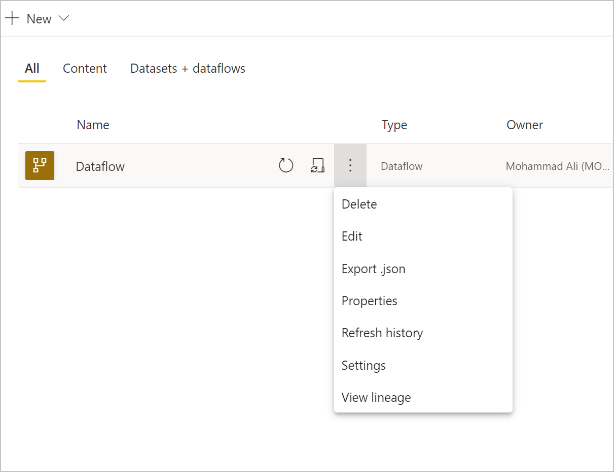
Why Dataflows Are Underrated
Many beginners never use dataflows because they only work inside Power BI Desktop. However, as projects grow larger, dataflows become one of the most useful features in Power BI.
They help by:
- Reducing repeated work
- Improving report consistency
- Making refreshes faster
- Creating one trusted version of the data
- Supporting teamwork
This is especially useful if several people work on different reports in the same organization.
How to Create a Dataflow
- Open Power BI Service
- Go to a workspace
- Select “New” → “Dataflow”
- Choose a data source
- Open Power Query
- Clean and transform the data
- Save the dataflow
Once saved, the dataflow can be connected to from Power BI Desktop.
Best Use Cases for Dataflows
Dataflows work best when:
- The same data is used in many reports
- Data cleaning is complex
- Multiple analysts use the same tables
- Refresh schedules need to be centralized
Examples include:
- Monthly sales reporting
- HR dashboards
- Inventory management reports
- Financial reports across departments
Common Mistakes to Avoid
- Creating too many separate dataflows
- Storing unnecessary columns
- Using dataflows for very small one-time reports
- Forgetting to schedule refreshes
The best dataflows are simple, reusable, and focused.
Conclusion
Power BI Dataflows are one of the least discussed but most valuable features in Power BI. They help you stop repeating the same data preparation steps and make your reporting process more efficient.
Once you start using dataflows, you can build cleaner, faster, and more scalable dashboards.